 Files Across
How to transfer files between iPhone and Windows PC over Wi-Fi
Short answer
Install Files Across on the iPhone, put the iPhone and PC on the same network, tap Connect Computer, and type the address it shows into Edge, Chrome or Firefox on the PC. Enter the six-digit code. Then drag files onto the page to send them to the iPhone, or click Download to save files from the iPhone to the PC. No iTunes, Apple Devices app, cable or cloud account.
What you need
- An iPhone or iPad with iOS 17 or later and the free Files Across app.
- A Windows PC with a current web browser. Microsoft Edge is built in; Chrome and Firefox work too.
- Both on the same local network: the same Wi-Fi, or the PC connected to the same router with a cable. Internet access isn't needed.
Connect the PC to the iPhone
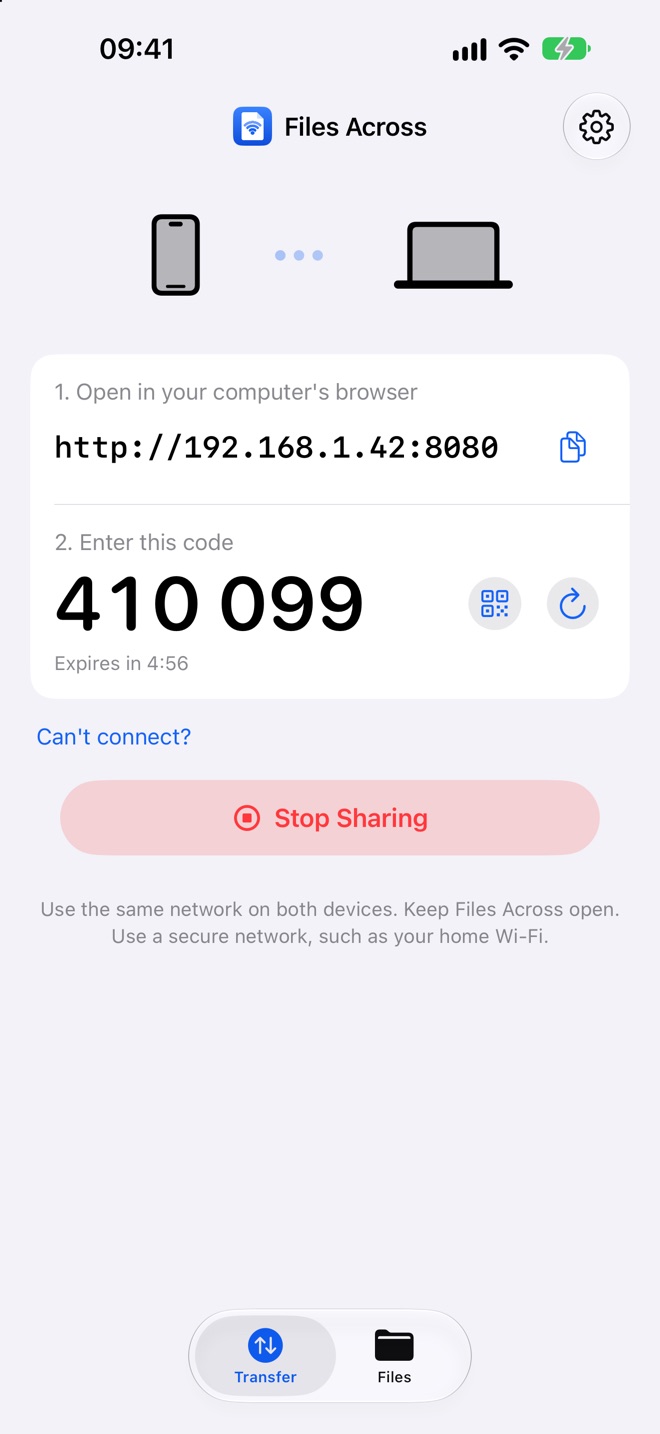
- Open Files Across on the iPhone and tap Connect Computer.
- The first time, iOS asks to allow Local Network access. Tap Allow; this is what lets the PC reach the phone.
- On the PC, click the browser's address bar and type the address exactly as shown, including
http://and the number after the colon, for examplehttp://192.168.1.42:8080. Press Enter. - Type the six-digit code from the iPhone and click Pair.
Send files from the PC to the iPhone
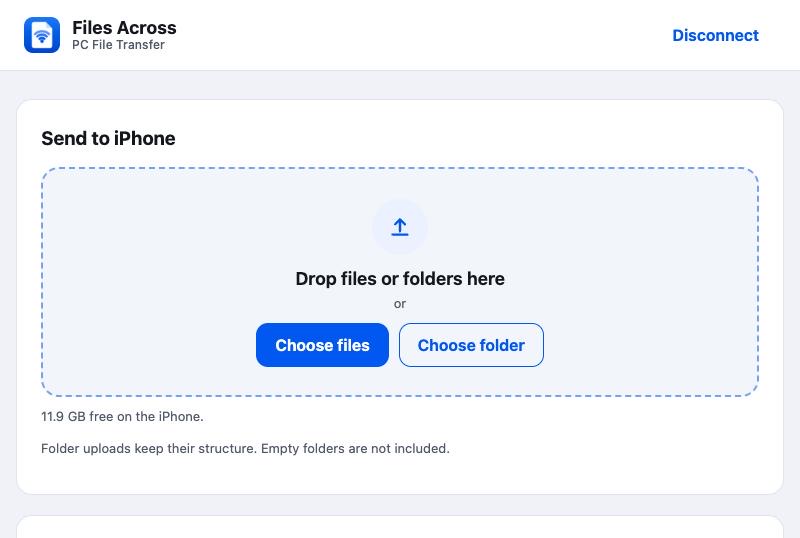
- Drag files from File Explorer onto the Send to iPhone area, or click Choose files.
- Watch the progress on both screens. Keep Files Across open on the iPhone until it finishes.
- Received files appear in the app's Files tab and in the iPhone's Files app under On My iPhone › Files Across. From there you can preview them, save photos and videos to Photos, or share them.
To send a whole folder with its subfolders, click Choose folder or drag the folder in (Pro). Empty folders aren't included, because browsers only hand over files.
Send files from the iPhone to the PC
- In Files Across, tap Add Files and pick photos or videos from Photos, or documents from Files. They're shared in place, not copied, so they don't take extra space.
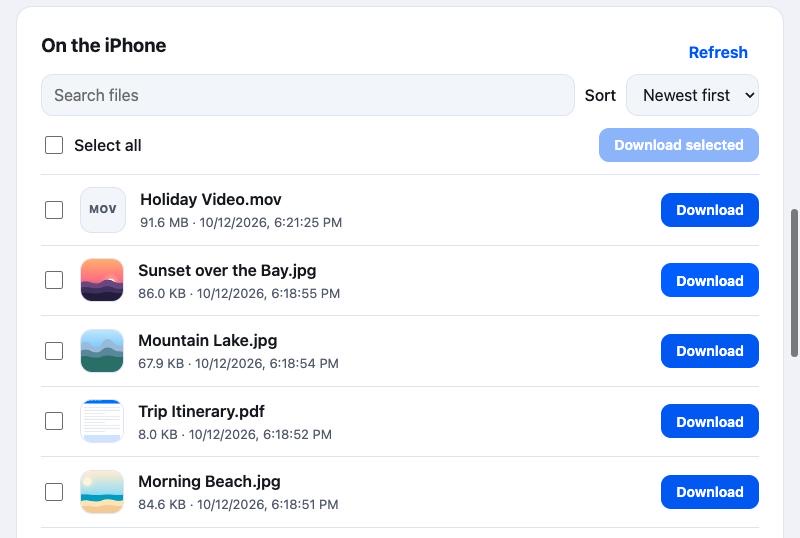
- On the PC, the page lists them under On the iPhone. Click Download next to a file, or tick several and click Download selected.
- The browser saves them like any download, normally to your
Downloadsfolder. If the browser asks to allow multiple downloads, click Allow.
Photos as JPG: iPhones save photos as HEIC by default. Windows can open HEIC with Microsoft's HEIF extension, or Files Across Pro can convert them to JPG while downloading.
If the page doesn't load on Windows
- Check the address. Type it exactly, with
http://and the port number. Don't search for it; type it in the address bar. - Keep the app open. iOS pauses Files Across when you switch apps or lock the phone, which ends sharing. Tap Reconnect for a new address and code.
- Local Network permission: on the iPhone, open Settings › Privacy & Security › Local Network and turn on Files Across. Then reload the page.
- Guest Wi-Fi: guest and hotel networks often keep devices apart. Use your main network, or turn on the iPhone's Personal Hotspot and connect the PC to it.
- VPN: pause a VPN on the PC or the iPhone and try again.
- Security software: some antivirus suites block connections to local devices. Allow your browser to reach devices on your local network.
More help: full troubleshooting guide.
Other ways to do it
A USB cable with Windows' Photos app imports photos, and Apple's Apple Devices app can copy files for some apps. Cloud services like iCloud for Windows or OneDrive work if you're happy to upload everything and download it again. Files Across is the quick option when you want a direct, private transfer with nothing installed on the PC.
Questions
Do I need iTunes or the Apple Devices app?
No. Files Across uses only the PC's web browser.
Is it faster than a cable?
Speed depends on your Wi-Fi. A cable is usually faster for very large transfers; Wi-Fi is more convenient for everyday files.
Where do downloaded files go on Windows?
Wherever your browser saves downloads, usually C:\Users\YourName\Downloads. You can change this in the browser's settings.
Can I connect two PCs at once?
One browser at a time. To switch, connect the new browser with a fresh code; the old one is signed out.